Tutorial: Assign an FDR to an Aircraft
Every FDR must be linked to the aircraft it is installed on. This link is called an assignment, and it is what tells the platform which aircraft the incoming flight data belongs to.
Until an FDR is assigned, the device may already be powered and connected, but its flights are not attributed to any aircraft: they will not appear in the aircraft's flight list, and they will not count towards engine, block or flight times.
This tutorial covers the task performed during installation: the aircraft and the FDRs are already loaded in the platform, and the installer only has to pair each device with the aircraft it was fitted to.
Before you start
Make sure you have the following:
| Requirement | How to check |
|---|---|
| A FlyData user with the Admin role | Roles are shown under Users. Only Admin users see the Assign FDR action. |
| The aircraft loaded in the platform | It appears in the Aircraft list, with Status = Active. |
| The FDR loaded in the platform, still unassigned | It appears in the FDR list with an empty Registration column. |
| The FDR physically installed in the aircraft | The installation is complete and the device is powered. See the FDR Installation Manual. |
| The FDR Serial Number written down | See Finding the serial number below. |
The assignment is what links flight data to an aircraft. Assigning the wrong device to an aircraft will attribute that aircraft's flights to the wrong airframe, including its accumulated times. Confirm the serial number on the physical device before you assign it.
Finding the serial number
The FDR is selected in the platform by its Serial Number, so the safest procedure is to read it from the unit you have just installed, and not from a delivery note.
There are two ways to read it:
- On the label — the serial number is printed on the label on the bottom of the device. This is the easiest option before the unit is fitted.
- On the internal display — navigate to the
Menu Informationscreen andLong Pressthe encoder to reach the information sub-screens. The second sub-screen shows the FDR Serial Number. See the FDR User Manual. Use this when the device is already installed and the label is no longer accessible.
Only the FDR is assigned to an aircraft. The FDR Display and the FDR ADSB Receiver are accessories connected to the FDR — they are not registered or assigned separately on the platform.
When installing a fleet, write the registration next to each serial number as you go. It makes the assignment step at the end quick and removes any ambiguity between similar devices.
1. Open the Aircraft list
Navigate to: Aircraft (side menu).
Locate the aircraft you have just fitted the FDR to. You can identify it by the Registration column.
Aircraft with Status = Inactive cannot receive an FDR. If the aircraft you are looking for is inactive, it must be reactivated before you can proceed.
2. Click the Assign FDR action
In the rightmost Actions column of the aircraft row, click the FDR icon — the tooltip reads Assign FDR.
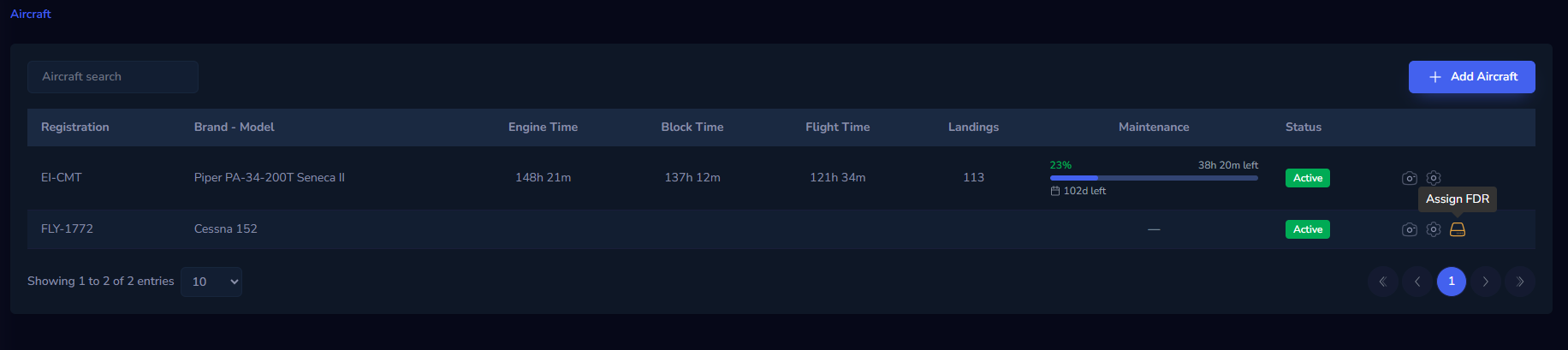
The Assign FDR icon is only shown for aircraft that do not already have an active FDR. In the example above, only FLY-1772 shows the icon: EI-CMT already has a device assigned, which is also why it already shows accumulated times. If the icon is missing on an aircraft that should be free, another device is already assigned to it — see Troubleshooting.
3. Fill in the assignment
The Assign FDR window opens, showing the registration of the selected aircraft in the title. Confirm it is the correct aircraft before continuing.
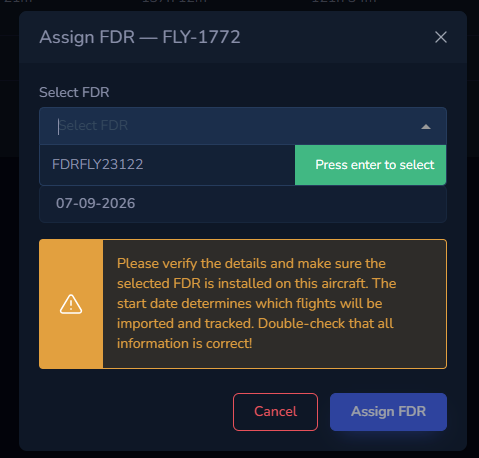
Select FDR
The dropdown lists only the FDRs that are not yet assigned to any aircraft. Devices are identified by their serial number, and the field is searchable — type part of the serial number to filter the list.
If the list is empty, the window shows "No unassigned FDRs available." — see Troubleshooting.
Start Date
The date from which this FDR is considered installed on this aircraft, in DD-MM-YYYY format. It defaults to today.
The start date determines which flights are imported and tracked for this aircraft. Flights recorded by the device before this date are not attributed to the aircraft. Set it to the date the device was actually fitted — do not leave a future date, and do not back-date it beyond the actual installation.
4. Confirm
Click Assign FDR.
The window closes and the aircraft is now linked to the device. The Assign FDR icon disappears from that aircraft's row, because the aircraft now has an active FDR.
If the assignment fails, the window shows "Failed to assign FDR. Please try again." and stays open, so no data is lost — retry, and if it persists, contact FlyData support.
5. Verify the assignment
Navigate to: FDR (side menu).

The FDR list is the fastest way to confirm the result and to track progress across a fleet installation:
| Column | What to expect after a correct assignment |
|---|---|
| Serial Number | The serial number of the installed device |
| Registration | The registration of the aircraft it was assigned to |
| Owner | The company that owns the device |
| Status | Active |
In the example above, the device FDRFLY23122 now shows FLY-1772 in the Registration column, confirming the assignment. Use the search box at the top to check a specific device by serial number or registration.
During a fleet installation, the FDR list doubles as a checklist: any row with an empty Registration column is a device that still has to be assigned.
Once the device starts reporting, the recorded flights appear under Flights for that aircraft, and the aircraft's Engine, Block and Flight times begin to accumulate in the Aircraft list. From that point, maintenance tracking can be configured — see Aircraft Maintenance.
Troubleshooting
| Situation | Cause | What to do |
|---|---|---|
| The Assign FDR icon is not shown on the aircraft row | The aircraft already has an active FDR, or its status is Inactive | Check the FDR list for a device already showing that registration. If the aircraft is inactive, reactivate it first. |
| The Actions column is not shown at all | Your user does not have the Admin role | Ask a company administrator to assign an FDR, or to upgrade your role under Users. |
| "No unassigned FDRs available." | Every FDR loaded for your company is already assigned, or the device has not been loaded into the platform yet | Confirm in the FDR list whether the serial number exists. If it is missing, contact FlyData support to have the device registered. |
The device you are looking for is not in the dropdown, but exists in the FDR list | It is already assigned to another aircraft | Check its Registration column in the FDR list. If that assignment is wrong, contact FlyData support. |
| Assigned to the wrong aircraft, or with the wrong start date | — | An assignment cannot be undone or edited from the platform. Contact FlyData support with the serial number, the correct registration and the correct start date. |
Registering new FDRs, correcting an assignment and configuring the device power profile are operations reserved to FlyData support. Take note of the serial number and the aircraft registration before contacting them — it is all that is needed to correct an assignment.