FlightLogger Integration
This guide explains how to connect FlyData to your FlightLogger account so that flight data recorded by FlyData is automatically submitted to FlightLogger after each flight.
How it works
When a flight is processed by FlyData, the FDR data is automatically sent to FlightLogger using your API token. FlightLogger then makes the flight available for viewing in your account.
Requirements
- A SILVER or GOLD FlyData plan
- A my|FlightLogger personal account with permission to create API keys
- The Company Admin role in FlyData
Step 1 — Create an API key in FlightLogger
- Sign into your personal account at my.flightlogger.net
- Click the API icon in the left-hand menu
- Click Create API key
- Fill in the key settings:
- Name — something descriptive, e.g.
FlyData Integration - Expiration — set according to your security policy (or no expiry for a long-lived integration)
- Name — something descriptive, e.g.
- Click Save
- Copy the token immediately — it will not be shown again
If you need additional help creating the API key, see the FlightLogger guide: Getting started with the GraphQL API.
Security note: Keep this token safe. Anyone with it can communicate with the FlightLogger API on your behalf. If compromised, revoke the key in FlightLogger and create a new one.
Step 2 — Activate the integration in FlyData
- Log into FlyData and click your user avatar (bottom of the sidebar)
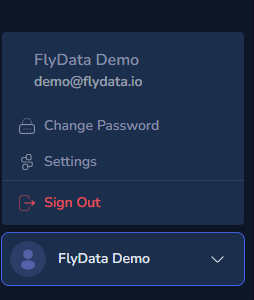
- Select Settings
- Click the Integrations card

- On the FlightLogger card:
- Paste the token you copied from Step 1 into the API Token field
- Make sure the Integration Enabled toggle is on
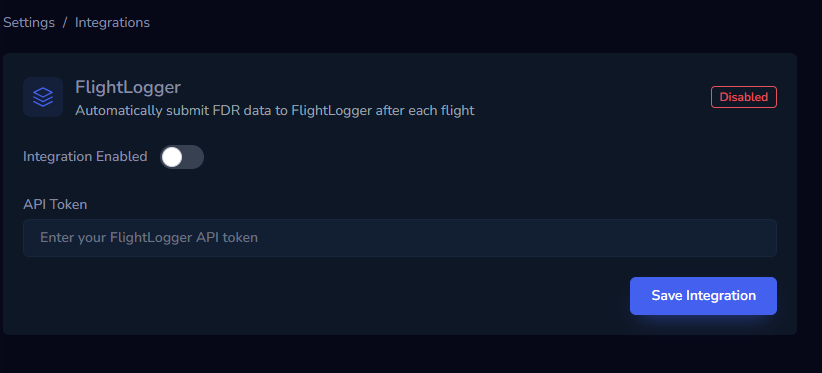
- Click Save Integration
FlyData will validate the token with FlightLogger. If valid, the masked token appears and the integration is active.
Step 3 — Verify
After the next flight is processed by FlyData:
- In your FlightLogger account, the flight will appear with a View Track link that opens the FlyData shared flight view
Updating or rotating the token
If you need to replace the API token (e.g. after rotation or expiry):
- Create a new API key in FlightLogger (Step 1 above)
- Go to Settings → Integrations → FlightLogger in FlyData
- Enter the new token in the API Token field — leave it empty to keep the current one
- Click Save Integration
The previous token is replaced immediately. Any flights already submitted to FlightLogger are unaffected.
Disabling the integration
To stop submitting flights to FlightLogger without losing the token:
- Go to Settings → Integrations → FlightLogger
- Turn off the Integration Enabled toggle
- Click Save Integration
Re-enable at any time using the same toggle. Flights processed while disabled will not be retroactively submitted.
Troubleshooting
| Symptom | Likely cause | Action |
|---|---|---|
| "Invalid FlightLogger API token" on save | Token was copied incorrectly or has been revoked | Regenerate the key in FlightLogger and paste it again |
| Integration saves but flights are not appearing in FlightLogger | Temporary integration or connectivity issue, or a delayed submission while FlyData retries sending the flight | Check FlightLogger again later. If the flight still does not appear, contact FlyData Support for verification |
| "Not available in your plan" badge on the Integrations card | FlyData plan does not include External API integrations | Contact your FlyData administrator to upgrade the plan |
| View Track link shows "link no longer valid" | The shared link has expired or been revoked | Open FlightLogger and click View Track again to get a new link |