Radar Operation Mode
The Radar Mode display screen shows a radar style representation of nearby traffic transmitted by FDR device.
The Display is intended to enhance the pilot’s ability to see and avoid. Maneuvers to regain adequate separation should not be based on alerts issued by this device or connected applications alone.
This Display is to be used to improve pilot situational awareness only and as a navigational aid. It is not intended for use in IFR flight conditions. FlyData is not responsible for the Display end use and will not be held liable for any events occurring from its use or misuse.
Radar and traffic indications are based on data received from the FDR device and external communications servers.
Targets may be missing, misidentified, delayed, or inaccurately positioned.
Do not maneuver the aircraft based solely on traffic or collision alerts shown on this display.
The data shown is collected from FlyData servers in partnership with SafeSky, this data is collected from ground stations all over the world and uploaded to FlyData servers. The FDR device downloads this data via its built-in LTE modem and transmits it to the Display via Wifi connection. The data is updated when FDR provides the status update to the server, the interval between updates depends on the configuration of FDR device and current flight status. Optionally the user can install a local FDR ADSB Receiver to visualize the local traffic even if the LTE connection with the server is down.
At the moment the data sent from the server to FDR is limited to a horizontal range of 14nm (26km) and vertical range of +/- 5000ft from the current altitude of FDR device, a maximum of 10 traffic targets are shown on the radar screen, data is sent sorted by proximity. These settings may be changed in the future or based on subscription levels.
The operation is very similar to FLYsky Display product, most configuration options are also similar.
Main differences between FLYsky Display and FDR Display in Radar Mode are:
FDR Displaydoes not supportMode-Straffic data, only ADS-B data from FlyData servers is shown.- Only
Airbornetraffic is shown,Groundtraffic is not displayed / transmitted toFDRdevice. - Alerts are generated by
FDR Displaydevice based on the traffic data received. - No physical buttons to control the zoom level, zoom is controlled via touch screen gestures (swipe up/down to zoom in / out) or via on screen controls.
This FDR Display is intended to be used in combination with FDR device only, it should support connection to other ADSB receivers that share data via WIFI using GDL90 protocol but this is not intended use and not fully tested.
For proper operation, the aircraft ICAO ID must be configured on FlyData Platform for the FDR device, this is required so that the server can exclude the OwnShip data from the traffic data sent to the Display.
Radar Screen Overview
The radar screen shows a circular radar representation of nearby traffic, the OwnShip position is represented by a small airplane symbol in the center of the screen. The radar range is shown in the top left corner, the range can be changed via touch screen gestures (swipe up/down to zoom in / out) or via on screen controls in the bottom left corner.
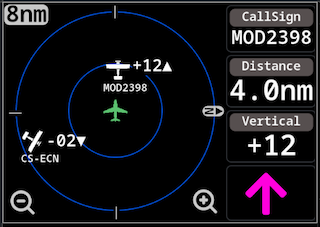
On the right side of the Display information related to nearest traffic target is shown, including CallSign, distance and relative altitude; it also shows, using an arrow, the direction of the target relative to OwnShip heading.
Next to each target on screen it is also shown the vertical difference (in hundreds of feet) as well the device CallSign. There are config options to control how this information is shown next to a target, see Vertical Decluttering and Radar Decluttering configuration options.
| No Screen Decluttering options disable | All Screen Decluttering options enabled |
|---|---|
 |  |
The UP symbol that appears on the relative vertical altitude information, only shows if target is reporting ClimbRate.
Traffic Target Symbols
Traffic targets are shown using different symbols depending on the type of target:
| Symbol | Description |
|---|---|
 | Generic symbol for when the target type doesn’t have a specific symbol. Also shown for “Small Aircraft” |
 | Symbol for “Helicopters” |
 | Symbol for “Drones” |
 | Symbol for “Military” |
 | Symbol for "Jets" / "Airliner" |
 | Symbol for "Glider" |
 | Symbol for other “Glider” type (ParaGlider, HandGlider, etc...). |
Alerts
The FDR Display generates visual alerts based on the traffic data received from FDR device. The alert levels are similar to FLYsky Display product:
When the Display detects an alert situation, the Radar scale will be automatically adjusted based on the distance to the target on alert status. The user can override this “zoom”, the scale is only adjusted once per alert.
In case of alert status, the information shown on the right side is always related to the target that triggered the alert, and not the “nearest” target.
The alerts are generated as follows:
- Alert Level 1
- Time to Collision 30s~60s
- Color: Yellow
- Alert Level 2
- Time to Collision 15s~30s
- Color: Orange
- Alert Level 3
- Time to Collision less than 15s
- Color: Red
The Display generate collision alerts based on the target current position, altitude, speed, heading and ClimbRate and it's own position, altitude, speed, heading and ClimbRate, it then calculates the new positions for the next 60 seconds for booth target and Display, if the target is inside a bounding box surrounding the Display/Aircraft an alert will be triggered, the alert level will depend on time to intercept.
The bounding box is currently defined as a "box" with display centered with 200m in length (l) and width (w) and 100m vertical height (h).
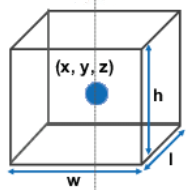
An example of an Alert Level 3 situation is shown below:
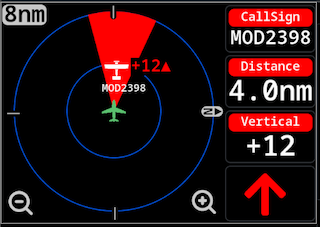
Depending on the alert level, the highlight color will be different.
Disabling Alerts
It is possible to disable alerts to a specific target, in order to do that click on the target symbol and a popup will show up to confirm the action.
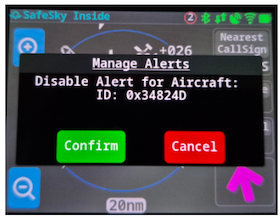
In case the action is Confirmed that target will show on the radar page with a different color (Light Gray):
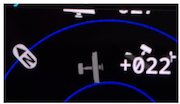
The user can re-enable the alerts for the target by clicking again the target symbol on the screen and confirming the action.
Configuration Options
To configure the Radar Mode options access the Settings menu and then Radar Cfg.
Press the Save button to apply the changes, or Cancel to discard the changes.
These settings menus have a symbol like this one, clicking in it it will show a small help page/text

Vertical Decluttering
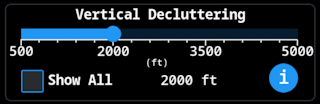
By default the Display will show traffic sent by the external data source that has a relative altitude difference of +/-1000ft, but it allows the user to change this setting, there are two options:
- Adjust the vertical difference between display position and target position, to only show targets with relative altitudes between 500ft and 5000ft (100ft increments), the user can select the value.
- Or enable the option
Show Allin order not to perform any kind of filtering based on vertical difference.
This setting can have little effect, specially the Show All option, since at the moment the data fetched from the server is already limited to +/-5000ft from OwnShip altitude.
Radar Decluttering
Used to reduce the amount of information that is displayed in the radar page.
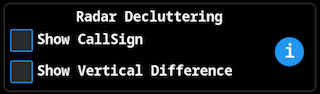
Show CallSignIf it should show the target CallSign on the radar page next to the target.Show Vertical DifferenceIf it should show the vertical difference between the Display and the Target in numeric format.- If this option is disabled, the Display will show an
+or-sign, depending if the vertical difference is positive or negative
- If this option is disabled, the Display will show an
The next image shows an example of a target on radar page with the default settings (Show CallSign and Show Vertical enabled):

The next image shows an example of a target with booth options disabled:

The arrow on the Vertical Difference indicates the target reported ClimbRate. if the reported ClimbRate is 0 the arrow will not show
Main Page Decluttering
Allows to hide the Zoom buttons and also to hide the information related to nearest target (information on the right side panel).
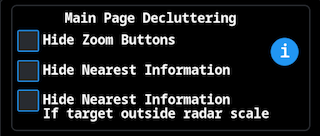
Where:
Hide Zoom Buttons: To hide the zoom buttons from the radar screen.- It is still possible to change the zoom level via the physical buttons on the Display enclosure or using swipe gestures on the screen.
Hide Nearest Information: The information shown on the right side panel related to the nearest aircraft will not be shown.- The
Arrowwill still be shown, to indicate the nearest aircraft orientation - In case of
Alertthe information related to the alert aircraft will be shown
- The
Hide Nearest Information: Second option, will hide the information on the right side panel, it the receiving nearest target is outside the radar scale / not visible on the radar page.
Alerts Visualization
Control some aspects of alerts.
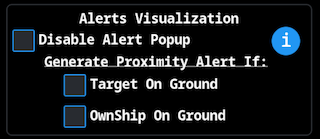
If option Disable Alert Popup is Active the popup will not show and instead it will show a highlighted area.
With Disable Alert Popup Active | With Disable Alert Popup Inactive |
|---|---|
 |  |
From firmware version 1.0.5.0 this option is now by default active. It does not show the Popup only Highlights the target direction area.
The other two options control alert generation
Target On GroundIf active, Display will generate alerts for traffic that are considered as being on Ground.- In the case of
FDR Displaythis option does not matter since the server at the moment does not send Ground traffic data. - Options exists, for future use.
- In the case of
OwnShip On GroundIf active, Display will generate alerts even if the Display considers to be atGround
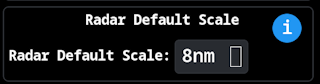
Radar Default Scale
Allow the user to set the default radar scale the device uses after power Up.
Restore Defaults
User can use to restore the display to it's default factory settings.

A popup will show up to request the user to confirm the operation.
These default settings do not include the Wifi Network selected/connected, and also do not include the Bluetooth device that may be paired/connected with the Display.
The device default settings are:
| Configuration | Default |
|---|---|
| Vertical Decluttering | Limit to +/-5000ft |
| Screen Decluttering | Only Show Vertical Difference are enabled |
| Main Page Decluttering | All options disabled |
| Alerts Visualization | All Options enabled |
This option will also reset other Display settings not directly related to Radar Mode, such as Brightness, Volume, etc...
| Configuration | Default |
|---|---|
| Brightness | 100% |
| Temperature units | Celsius |
| Pressure units | hPa |
| Altitude units | Feet |
| Distance units | Nautical Miles |
| Speed units | Knots |