Tutorial: Configure Aircraft Maintenance in FlyData
FlyData allows you to configure maintenance alerts for each aircraft based on flight hours, a deadline date, or both simultaneously. The system automatically tracks hours logged by flights and calculates maintenance status in real time.
1. Access the Edit Screen
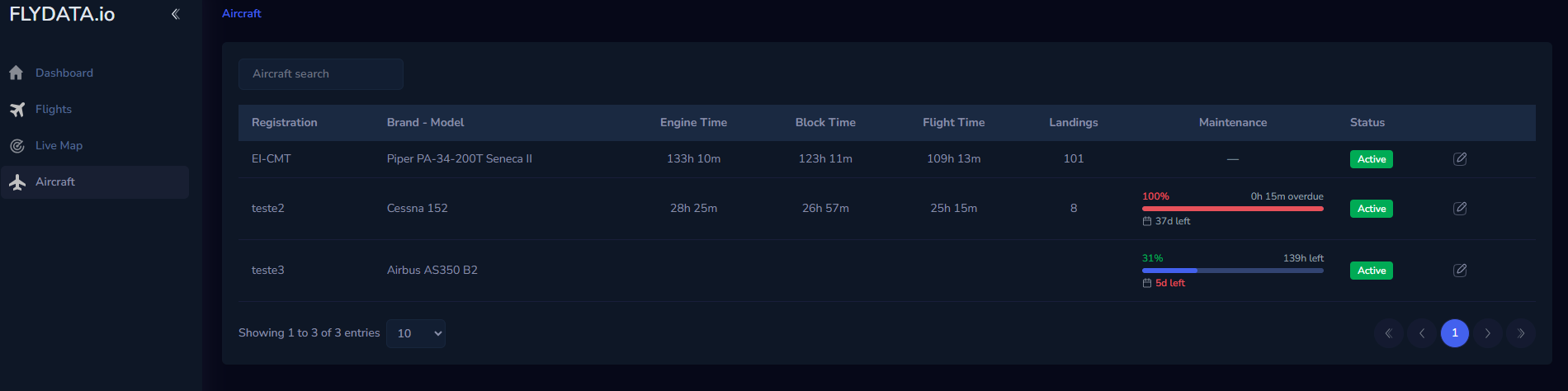
Navigate to: Aircraft (side menu)  → locate the aircraft in the table → click the edit icon (pencil)
  in the rightmost column.
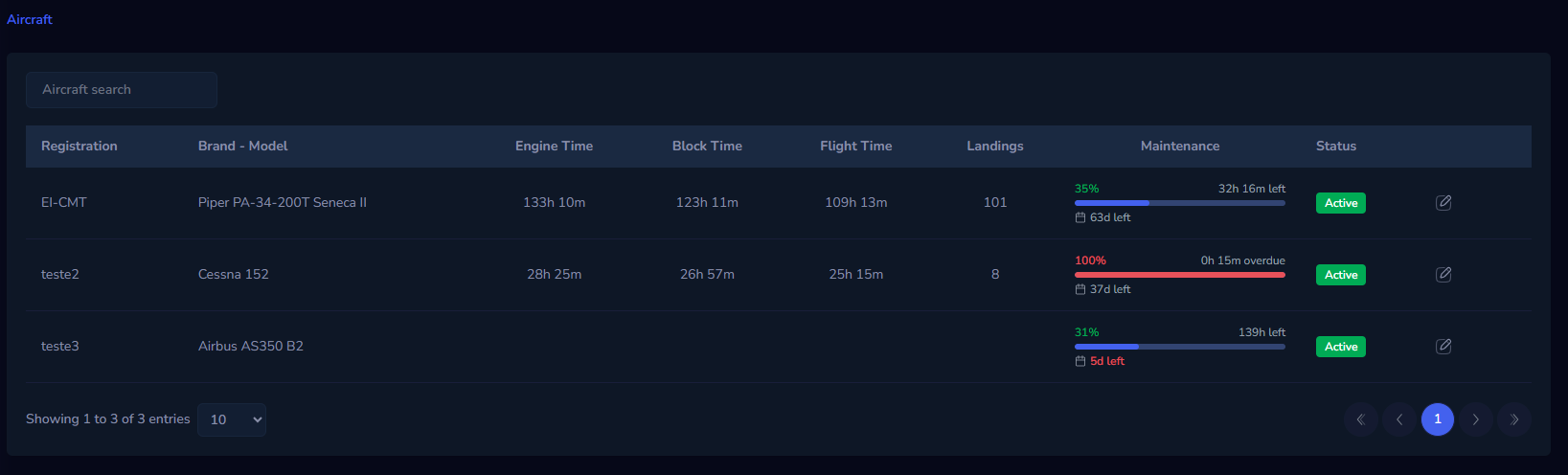
The Aircraft table shows the following columns:
| Column | Description |
|---|---|
| Registration | Aircraft registration (e.g. EI-CMT) |
| Brand - Model | Make and model |
| Engine Time | Accumulated engine hours (FDR) |
| Block Time | Accumulated block hours (FDR) |
| Flight Time | Accumulated flight hours (FDR) |
| Landings | Number of landings (FDR) |
| Maintenance | Visual status of configured maintenance |
| Status | Aircraft status (Active/Inactive) |
Aircraft without configured maintenance show — in the Maintenance column.
After clicking the edit icon, you are redirected to the Aircraft / <TAIL_NUMBER>/ Edit page.
2. Understanding the Edit Page
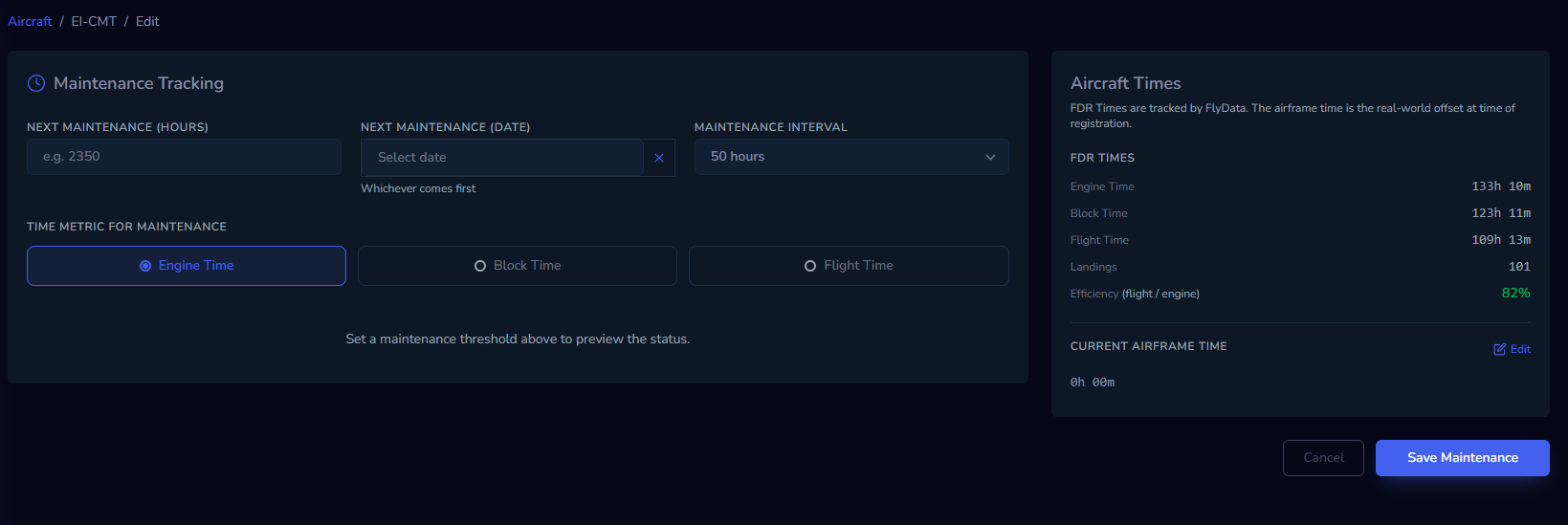
The page is divided into two panels:
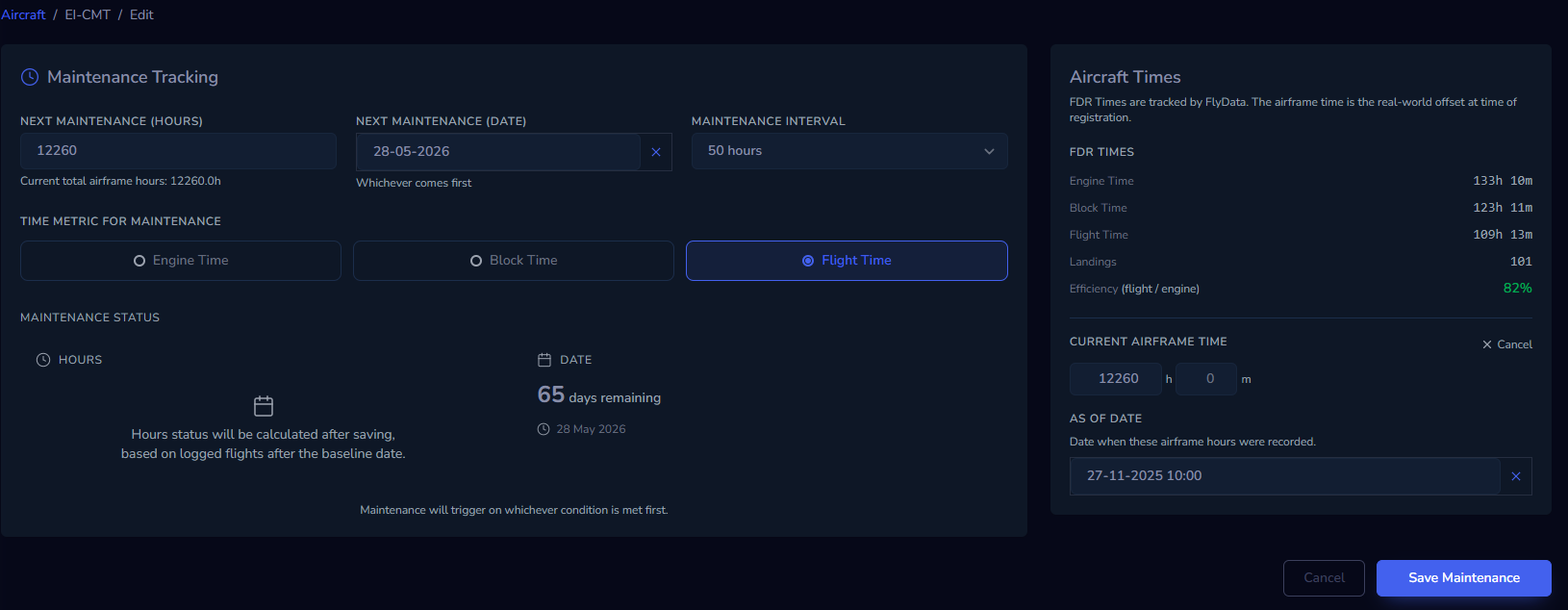
Left panel — Maintenance Tracking Where you configure the maintenance parameters.
Right panel — Aircraft Times Where you view and set the aircraft's total real time.
2.1 Right Panel: Aircraft Times
FDR Times (read-only)
FDR values are accumulated automatically from flights logged on the platform. They are not editable.
Example:
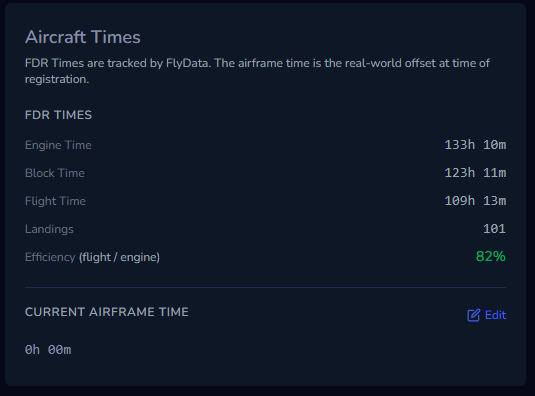
Current Airframe Time
The airframe time represents the aircraft's real total — it includes hours prior to the start of logging on the platform.
Click Edit (pencil icon next to the field) to expand the form. Two fields appear:
Hours and minutes — enter the aircraft's real total at the reference date.
As of Date — the exact date and time those hours correspond to. It serves as an anchor for incremental calculation: all flights logged after this date are automatically added to the entered value.
Example:
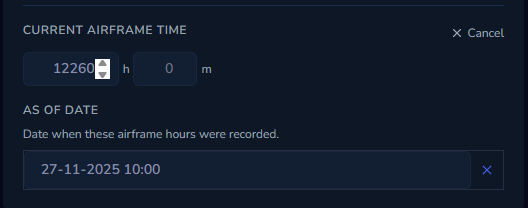
The airframe time cannot be saved without setting an As of Date. This date is mandatory.
2.2 Left Panel: Maintenance Tracking
Maintenance Interval
Select the aircraft's standard interval from the dropdown menu:
- 25 hours
- 50 hours
- 100 hours
- 200 hours
- 300 hours
The interval defines the progress calculation window.
Time Metric for Maintenance
Choose which FDR counter is used as the basis for the hour calculation:
- Engine Time
- Block Time
- Flight Time
This choice matters: the system uses this counter to calculate how many hours have been consumed since the last maintenance. Changing the metric afterwards requires confirmation.
Next Maintenance (Hours)
The total airframe hours at which the next maintenance must occur.
- Must be greater than the aircraft's current hours
- Cannot exceed
current_hours + interval(skipping a maintenance is not allowed)
Example
- Current airframe: 12260h
- Interval: 50h
- Next Maintenance (Hours):
12310
Next Maintenance (Date) - Optional
Deadline date for the next maintenance, regardless of hours.
- Optional — can be used alone or together with the hours threshold
- When both are set, the system triggers on whichever condition is reached first
Example
- Next Maintenance (Date):
28-05-2026
The field shows "Whichever comes first" when both thresholds are configured.
3. Maintenance Status Panel (preview)
After filling in the fields, the Maintenance Status panel appears automatically with a preview:
If the airframe time is being configured for the first time, the hours card shows the message: "Hours status will be calculated after saving, based on logged flights after the baseline date." This is normal — the system needs to calculate hours based on flights after the baseline date.
Hours Card (HOURS)
Shows the percentage consumed since the last maintenance and the remaining hours.
- Green: less than 60% consumed
- Yellow: 60–80% consumed
- Red: more than 80% consumed or overdue
Date Card (DATE)
Shows the days remaining until the deadline date.
Example:
- DATE: 66 days remaining — 28 May 2026
The date card is not affected by airframe time editing and is available immediately.
The message "Maintenance will trigger on whichever condition is met first." confirms that both conditions are active.
4. Save
Click Save Maintenance.
After saving, the platform shows the confirmation: "Maintenance settings saved successfully."
The aircraft list will show in the Maintenance column of the table a visual status with a progress bar and remaining hours/days, instead of the previous —.
Typical Scenarios
New aircraft on the platform (no logged flights)
- Go to Edit
- Set the Current Airframe Time with the current real total and the corresponding date
- Configure metric, interval and next maintenance
- Save — from this point, future flights are added automatically
Aircraft with already logged flights (first maintenance setup)
- Check FDR Times to understand how many hours are already on the platform
- Set the Current Airframe Time with an official record value (e.g. last maintenance) and the corresponding date
- The system automatically adds flights after that date to the entered baseline
- Configure maintenance and save
Update after maintenance performed
- Go to Edit
- Change the Next Maintenance (Hours) field to the new threshold (current hours + interval)
- Update the date if applicable
- Save
Correct the airframe time
- Click Edit on Current Airframe Time
- Enter the correct value and a new As of Date
- Save — the system recalculates from the new baseline