FDR ADSB installation Manual
ADSB receiver to be used in conjugation with FDR device, allows FDR to show on internal display (or external FDR Display) radar information regarding nearby aircraft.
Although the receiver is capable of receiving Mode-S only aircraft, at the moment those aircraft are ignored, the method to calculate estimated distance to those aircraft is not complete, requires more real world testing.
The device itself should be capable of these calculations based on the internal receiver information.
Product Dimensions
The device as base size of 65mm x 63mm x 22mm. The total height depends on the mounting options, 22mm is just the enclosure height.
There are two M3 mounting holes on the bottom of the enclosure.

The maximum depth for M3 screws internally is 5mm, any longer than that you risk damaging internal PCB.
By default FDR ADSB has the Garmin mounting accessory coupled, it can be removed.
Front Panel
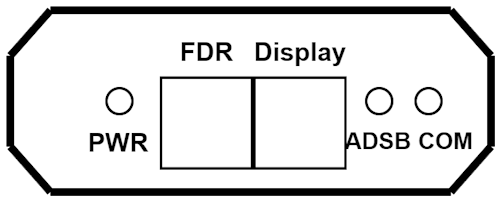
The front panel has 3 LEDs:
- Power LED (Green), is always ON if device is powered.
- ADSB Frame indication (Yellow), will blink indicating that is receiving ADSB messages
- COM (Green), indication os status of communication with
FDR- 1s blink (ON/OFF), connected to
FDR - Fast Blink (0.2s ON and 1s Off), Not Connected to
FDR
- 1s blink (ON/OFF), connected to
The front panel also has two power connectors (4 pin connector), the connectors are internally connected but for installation / usage considerations the left connector is for FDR connection / Power device, and the right side connector is to connect to FDR Display. When connecting to FDR Display it only supplies power.
Back Panel
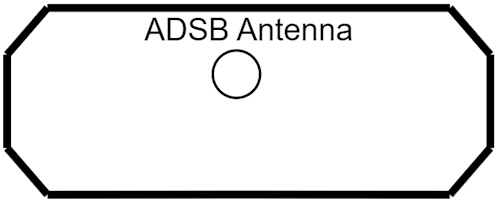
The back panel, has just the SMA Connector to connect the ADSB Receiving antenna.
Device Installation
Physical Installation
With the default antenna supplied, it is assumed the device will installed on top of the aircraft instruments console, in such a way that the ADSB antenna is not surrounded by metallic objects and has "good" visibility to the outside.
Even using the default antenna, the device can be installed in other location (inside the instruments console) as long an antenna extension cable is used to place the ADSB antenna in a proper location
Other antenna options are available, contact us.
There various options to mount the equipment (depending on antenna in use):
- Use the
Garminstyle mounting support supplied in the product box - Use velcro to place it in a flat surface, use a strong velcro, a patch size of at least 70% of device Area
- Use double sided adhesive, thinner adhesive is recommended, use a patch size of at last 70% of device Area
- Fix device to a metallic surface / support structure using the two M3 mounting holes on the device
- NOTE: The M3 screw maximum length on FDR enclosure is 5mm
ADSB Antenna
The ADSB antenna connector on the device is a standard SMA Female connector, there are several antennas in the market appropriated to be installed in aircraft, as long the antenna cable connector is a SMA Male connector (Impedance 50Ohms) it is possible to connect it to the receiver.
Powering the Device
The default installation option is to use the extension cable supplied with the device, this cable connects on the FDR expansion connector and on the FDR ADSB Power Connector, in this scenario this device is powered via FDR internal power.
Check FDR Power Connections Options.
The device can be powered for example via a USB Charger.
If powering the device not from FDR, make sure to not supply more than 5V to device, risking damaging the electronics
We can arrange cables with different lengths than the default 1m length, please contact us.
Power Connector Pinout

Where:
- GND (0V)
- Comms Signal
- Comms Signal
- Power (+5V)
Powering Display
Since the device has dual power connectors, it is possible to also power the FDR Display using this device. Use the standard FDR Display power cable, and instead of connecting to FDR connect to the second power port on this device.
In this situation booth devices (FDR ADSB Receiver and FDR Display) will be powered from FDR.
We can arrange Display USB cables (with 90º USB-C Connector) with different lengths than the default 1m length, please contact us.
Connecting ADSB Data Receiver to FDR
In case the device is connected to FDR using the standard cable, and FDR serial number is higher than FDRxA0118 the connection is made using a serial port on the Power connector.
If FDR does not support this (or the FDR ADSB Receiver is not wired to FDR) it is necessary to pair this device with FDR via Wifi.
Follow these steps:
- Using mobile phone, connect to Wifi HotSpot being generated by the
FDR ADSB Receiver- The Wifi Network name should be
FDR4Bxxxx(wherexxxxis the device serial number)- Check the label on the device for the serial number.
- The password for the Wifi network is
FDR_2022 - NOTE: On Android phones specifically, after connecting there will be a warning regarding the Wifi network does not have internet connection, and will appear a prompt to confirm if the phone is to stay connected or not, please select
Stay Connected
- The Wifi Network name should be
- After connecting to the Wifi Network, open the browser and access this page (via IP Address)
http://192.168.125.10
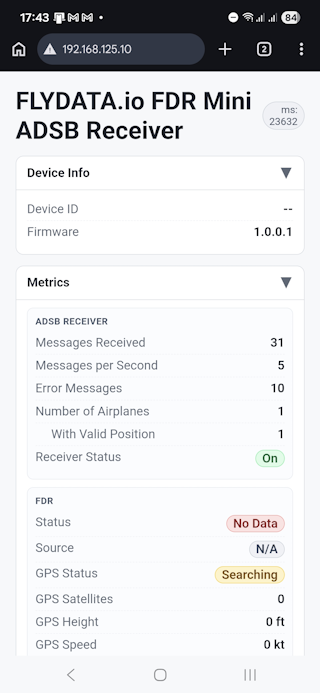
- In case the device is not configured (and not connected to
FDR) theFDRStatusandSourceshould appear asNo Data(Red) andN/A. This means the device is not connected to anyFDR.
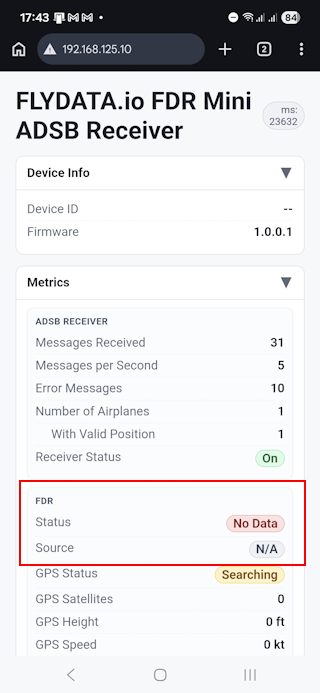
-
Scroll the page, until you reach the
WIFI Configurationsection:- In this case, the device was already connected to a WIFI network
DEV_LAB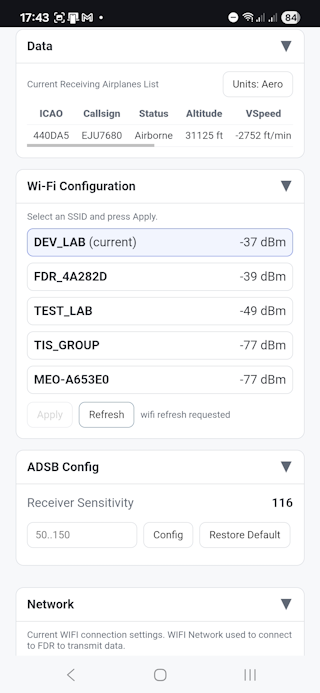
- In this case, the device was already connected to a WIFI network
-
Select the Wifi Network being created by the airplane
FDR- The Wifi network should have the name as the
FDRserial Number. In case more than one appears due to other aircraft in the vicinity should be the one with higher RSSI value.
- The Wifi network should have the name as the
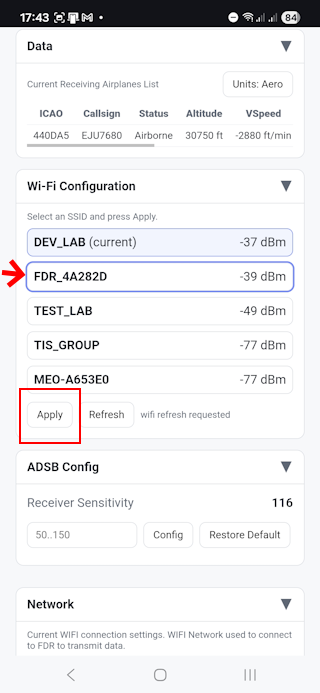
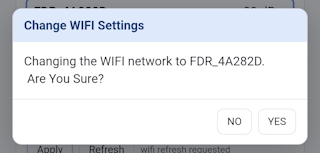
- Confirm the selection of the new WIF Network
- Wait a few seconds, the page should update with new values, indicating that
FDRstatus asOKand source asWIFI
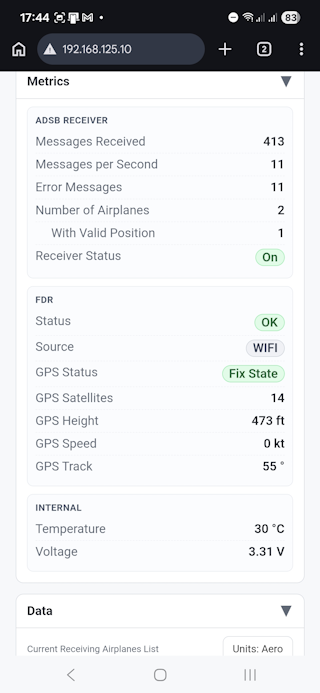
In this situation, the COM Led, should be blinking with 1s interval.