Connect to devices
Description on how to connect Display to other devices.
Although the Display firmware may support been connect to multiple devices at the same time, it's a situation that is not properly tested and not intended as standard operation.
If testing while on the ground, it is advisable to disable the vertical decluttering filter from the Display otherwise may not see any traffic due to vertical altitude filtering.
Go to Settings / Config / Vertical Decluttering and check the option Show All
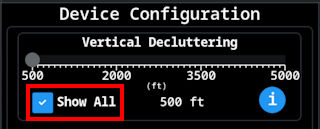
Note that the data source (for example SafeSky App) may already be implementing some kind of filtering...
Connection with SafeSky App
In order to use the Display with SafeSky App, it is necessary to have SafeSky App v3.0.32 or higher.
Contact SafeSky if your version is lower than the requirement.

Make sure that you Bluetooth enabled on the phone, and that the Display is powered on.
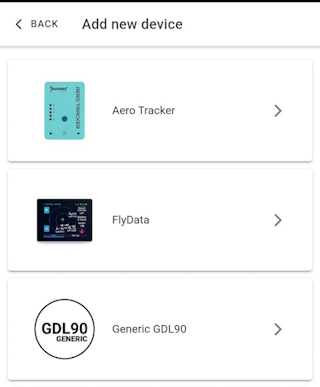
In order to associate the Display with SafeSky App, open the App and go to Settings -> External Traffic Device and select Add new Device. Select FlyData device type from the selection menu:
After a short while, it should indicate that it has discovered a new device and for the user to confirm.
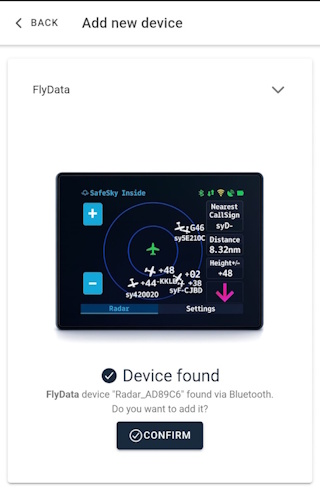
After that there should be a new device in your External Traffic Device and it's all set to go. When in flight mode (After Take OFF) the phone will connect automatically with the Display and start transmitting data.
If everything is OK, if SafeSky App is in Flight mode, the icons on the Display should look like this:

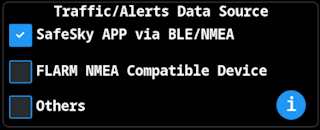
For this connection to work, AeroTracker must be powered on, and make sure that the Display Data source (Settings / Config / Traffic/Alerts Data Source is set to SafeSky APP via BLE/NMEA)
Alternate method
There is other way to connect the Display to SafeSky App, we can use Wifi instead of BLE (although when using with SafeSky App, BLE is the official supported way).
For this method to work:
- Connect the Display to the same Wifi Network used by the phone/tablet where SafeSky App is installed
- Have SafeSky App configured to share the traffic, and that the software is defined as one of the following
- EnRoute
- Garmin Pilot
- SkyDemon
- On the Display access
Settings/Config/Wifi Supported Protocolsand make sure thatGDL90is selected.
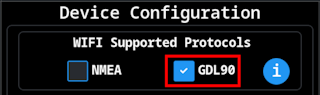
- Also set the option
Settings/Config/Traffic/Alerts Data SourcetoOthers
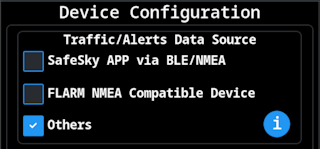
After that, the display should start receiving data from SafeSky App (after performing TakeOff).
If everything is OK, if SafeSky App is in Flight mode, the icons on the Display should look like this when connected to AeroTracker using Wifi:

This method from the display side probably works with other data sources that implement GDL90 over Wifi (it's known that the device Sentry although it uses GDL90 is not compatible)
Connection With AeroTracker
There are two possible methods to connect the Display to AeroTracker, either via Wifi or via Bluetooth, the preferable way is via Bluetooth.
For this connection to work, AeroTracker must be powered on, and make sure that the Display Data source (Settings / Config / Traffic/Alerts Data Source is set to Others)
On the Display go to Settings -> Bluetooth.
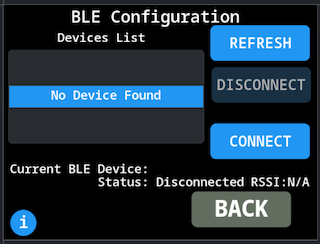
Press the button Refresh to force the Display to search for compatible Bluetooth devices, after a while it should show a list of available devices.
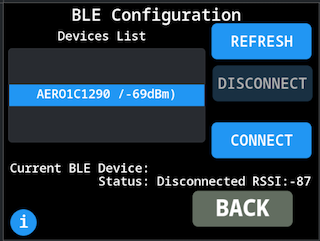
Select the correct device (in case more than one device show up in the list) and press the Button Connect. After a couple of seconds the status should change to Connected.
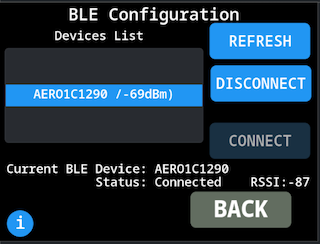
This setting is stored in internal memory, next time the Display is powered up it will try to connect to the configured AeroTracker automatically.
If everything is OK, the icons on the Display should look like this when connected to AeroTracker using BLE:

Aero-Tracker via WIFI
From the Display side is simple to connect to the Wifi network that Aero-Tracker has. Adjust this settings for better experience:
- On the Display access
Settings/Config/Wifi Supported Protocolsand make sure that onlyNMEAor justGDL90is selected.
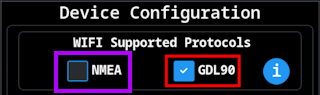
- Also set the option
Settings/Config/Traffic/Alerts Data SourcetoOthers
If everything is OK, the icons on the Display should look like this when connected to AeroTracker using Wifi:
If using AeroTracker via Wifi it is important to not have AeroTracker also configured as Bluetooth device on the Display, use only one option or connect via Wifi or Via Bluetooth
If using AeroTracker via Wifi it recommended to configure just one Wifi Protocol on the Display, since there may be data conflicts between NMEA and GDL90 information on the Display when attempting to merge the data.
Connection to SkyEcho2
Display can receive traffic from SkyEcho using the GDL90 protocol via WIFI Connection.
- Connect the Display to the same Wifi network being created by SkyEcho2
- On the Display access
Settings/Config/Wifi Supported Protocolsand make sure thatGDL90is selected.
- Also set the option
Settings/Config/Traffic/Alerts Data SourcetoOthers
If everything is OK, the icons on the Display top bar should look like this when connected to SkyEcho2:
At this point is unknown if SkyEcho2 supports sending traffic information of ModeS / Bearingless targets via GDL90 protocol, or how that information is sent.
Connection to FDR
Display can receive traffic from FDR using the GDL90 protocol via WIFI Connection.
- Connect the Display to the same Wifi network being created by FDR
- Check FDR Serial number, the WIFI Network has the same name
- On the Display access
Settings/Config/Wifi Supported Protocolsand make sure thatGDL90is selected.
- Also set the option
Settings/Config/Traffic/Alerts Data SourcetoOthers
If everything is OK, the icons on the Display top bar should look like this when connected to FDR:
There are some constraints using FDR:
- No support to show
Mode-Stargets, since this is data directly from SafeSky servers we always have targets real position (may be based on MLAT) - The data being requested to SafeSky server is limited to:
- Maximum of 10 targets (sent by proximity order)
- Relative vertical altitude of +/-5000ft
- Maximum distance of 14nm
- In case the
FDRis paired withFDR_ADSB_Receiverthe limits mentioned are not applicable (except that for the moment we do not supportMode-Stargets even with local ADSB Receiver) - Data Update is based on FDR configured status update to the server, this interval depends on device current status (in ILS zone, on ground, on Air, etc..) and it may vary between 1s to 30s.
It is possible to have FDR paired with a local ADSB receiver, if the local ADSB receiver is present some of the limitations mentioned no longer applies.
At the moment (it will change in the Future), even when paired to the local ADSB receiver, Mode-S targets are still not supported, this feature is pending some internal testing.