Quick start: SafeSky App via Bluetooth
Follow this guide to connect your FLYsky Display to SafeSky App and confirm it is receiving data.
Start the connection from SafeSky App on your phone/tablet. SafeSky supplies the traffic, GPS information, and collision alerts to the Display.
Before you start
- Have SafeSky App v3.0.32 or later and an active Premium subscription.
- Enable Bluetooth on your phone/tablet and make sure it has internet access.
- Check your aircraft details in SafeSky, including its transmitter ID.
- Use one traffic source and one connection method during setup. Disconnect any other traffic source already connected to the Display.
1. Prepare the Display
- Hold the side Power Button for about 2–3 seconds to turn the Display on, or connect USB power. Acknowledge the startup warning.
- From the radar screen, briefly press the Power Button to open Settings. You can also press and hold the status icons at the top right for about 0.5 seconds.
- Open Config → Traffic/Alerts Data Source and select SafeSky APP via BLE/NMEA.
- Press SAVE, then return to the radar screen.
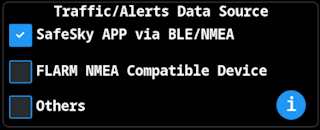
Leave the other settings at their defaults for this first connection. Wi-Fi setup is not required for Bluetooth use.
2. Add the Display in SafeSky App
- On your phone/tablet, open SafeSky → Settings → External Traffic Device → Add new Device.
- Select FlyData.
- Wait for the Display to be found, then press CONFIRM. Its name follows the pattern
Radar_xxxxxx; the last characters are specific to your Display.
| Select FlyData | Confirm the discovered Display |
|---|---|
 |  |
The Display should now appear in SafeSky's external-device list.
The Display's Settings → Bluetooth menu is used to connect to devices such as Aero-Tracker. Your SafeSky connection is managed from the app and will not appear in that menu.
3. Start data transmission and check the Display
In SafeSky, start flight mode using Take OFF. The app then connects to the Display and starts sending data.
Check the status icons at the top right of the Display:

| Indicator | What to look for |
|---|---|
| Bluetooth | Green: the Bluetooth connection is active. |
| Data communication (up/down arrows) | Green: the Display is receiving messages. |
| GPS (satellite) | Green: SafeSky is reporting a valid GPS fix. |
| SafeSky Inside | Highlighted: the Display is configured for SafeSky traffic and alerts. |
The example also shows a green Wi-Fi icon. Wi-Fi does not need to be connected for this setup; a red or gray Wi-Fi icon alone does not indicate a Bluetooth problem.
Setup is complete when Bluetooth and data reception are green. A green GPS icon confirms a valid position is available for radar operation. An empty radar can simply mean there is no traffic within the current range and filters. By default, the Display filters traffic to within +/-1000ft of your altitude; SafeSky also applies its own filters and only sends traffic it considers airborne.
Next time you switch on
Power on the Display, enable Bluetooth on your phone/tablet, open SafeSky, and use Take OFF to start flight mode. SafeSky reconnects automatically to the associated Display; you do not need to add it again.
Connected, but no traffic?
| Check | What to do |
|---|---|
| Bluetooth or data icon is red | Confirm SafeSky is running in flight mode and the Display is listed under External Traffic Device. Keep the devices near each other. |
| GPS icon is red | Check GPS reception on the phone/tablet. A fix may be unavailable indoors. |
| No internet warning | Restore the phone/tablet's internet connection. |
| Icons are green but targets are missing | Compare with SafeSky's Radar view and check its filters. For a ground test, temporarily select Settings → Config → Vertical Decluttering → Show All → SAVE on the Display. This cannot recover traffic already filtered out by SafeSky. Restore your preferred altitude limit after testing. |
| Data stops when the phone screen is off | Allow SafeSky to run in the background and check the phone's battery-optimization settings. |
Once connected, read about radar operation and alerts. Brightness, themes, and other preferences are covered in the User Manual.