Own System Integration (Webhooks)
This guide is for companies and developers who want to connect their own system — for example a training-management or flight-school platform — to FlyData.
With this integration:
- FlyData sends a signed HTTPS request (webhook) to your system each time a flight is completed and processed;
- your system can open that flight in FlyData, either for users who already have a FlyData account or, through a temporary access link, for users who do not.
How it works
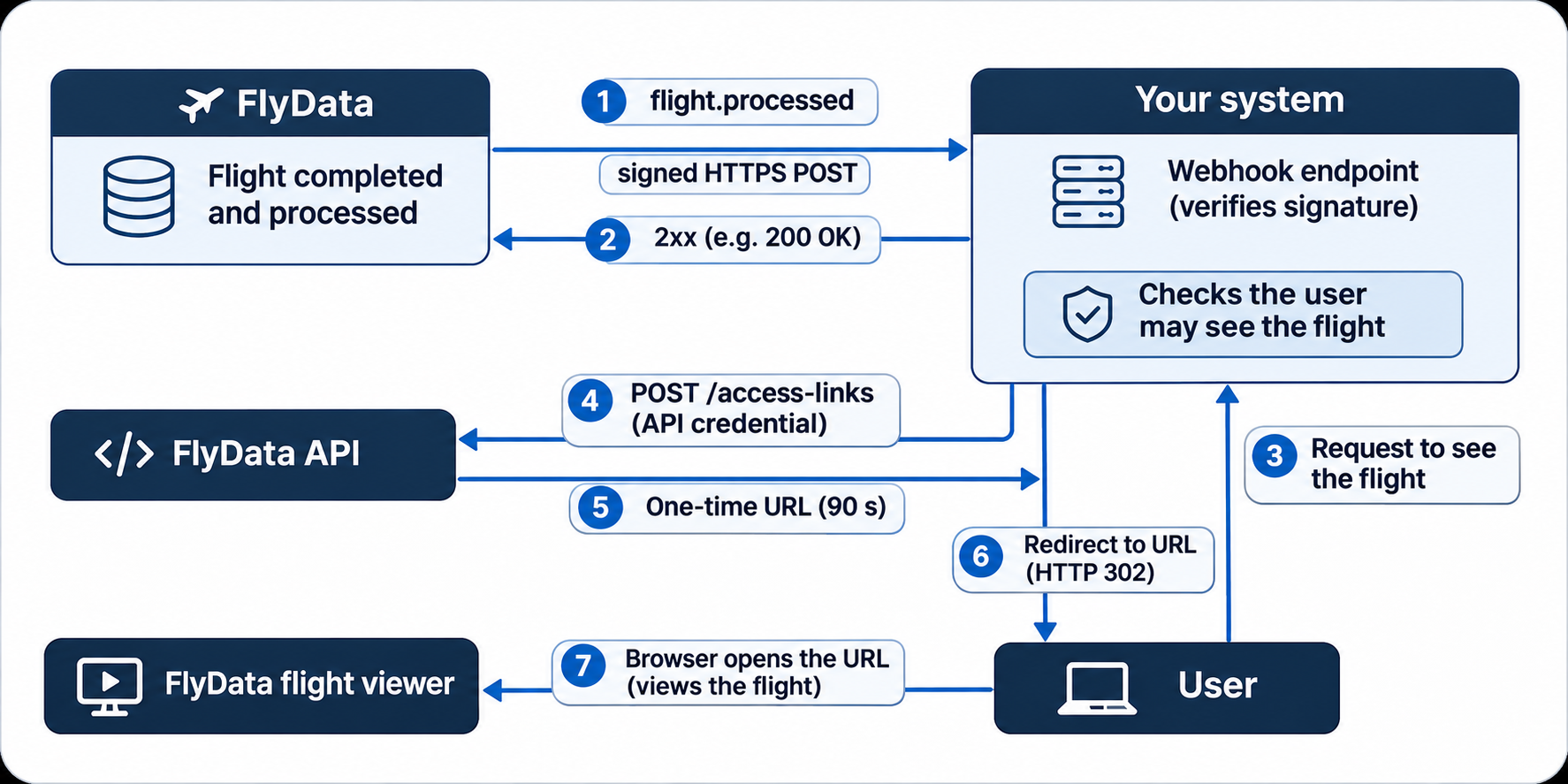
Detailed flow
Steps 1–2 happen for every completed flight. Steps 3–8 happen only when a user without a FlyData account wants to open a flight; users with an account can use the flight link included in the webhook instead.
The integration uses two different secrets, one for each direction. Never use one in place of the other.
| Secret | Direction | Format | Used for |
|---|---|---|---|
| Signing secret | FlyData → your system | whsec_... | Verifying that each webhook really came from FlyData |
| API credential | Your system → FlyData | fv_int_live_... | Requesting temporary access links to open a flight |
Requirements
- A SILVER or GOLD FlyData plan
- The Company Admin role in FlyData
- A public HTTPS endpoint on port 443 that can receive
POSTrequests - Only one integration can be active at a time. If the FlightLogger integration is active, disable it before activating this one.
Step 1 — Create the integration in FlyData
- Log into FlyData and click your user avatar (bottom of the sidebar)
- Select Settings and open the Integrations card
- Choose Own system (webhook) and click Set up
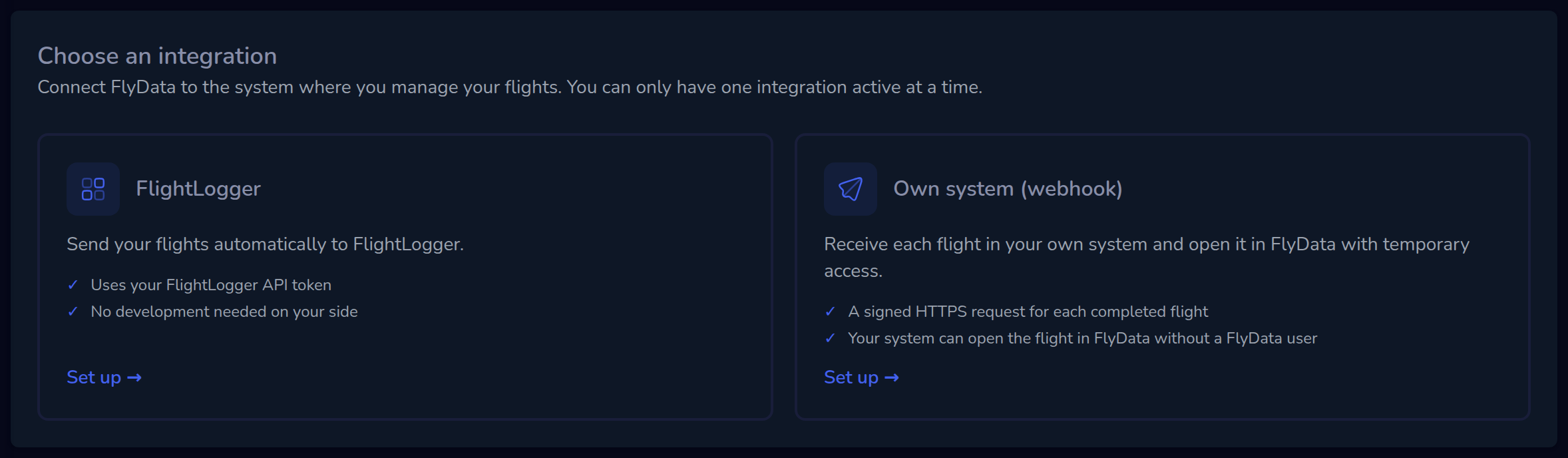
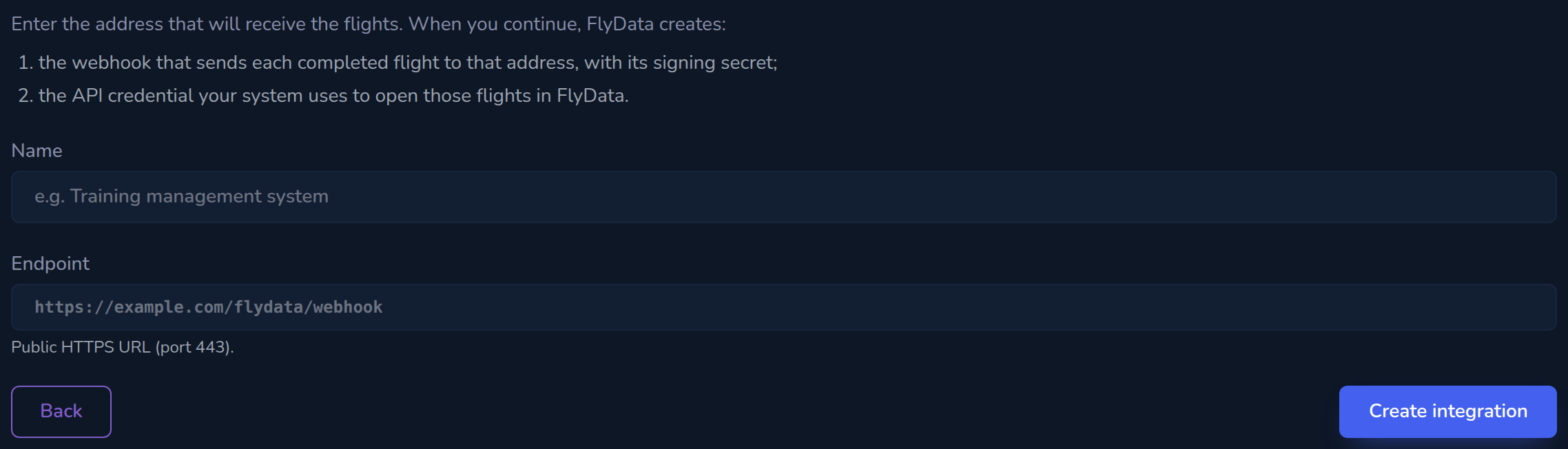
- Fill in:
- Name — something descriptive, e.g.
Training management system - Endpoint — the HTTPS URL that will receive the flights
- Name — something descriptive, e.g.
- Click Create integration
FlyData shows the signing secret and the API credential.
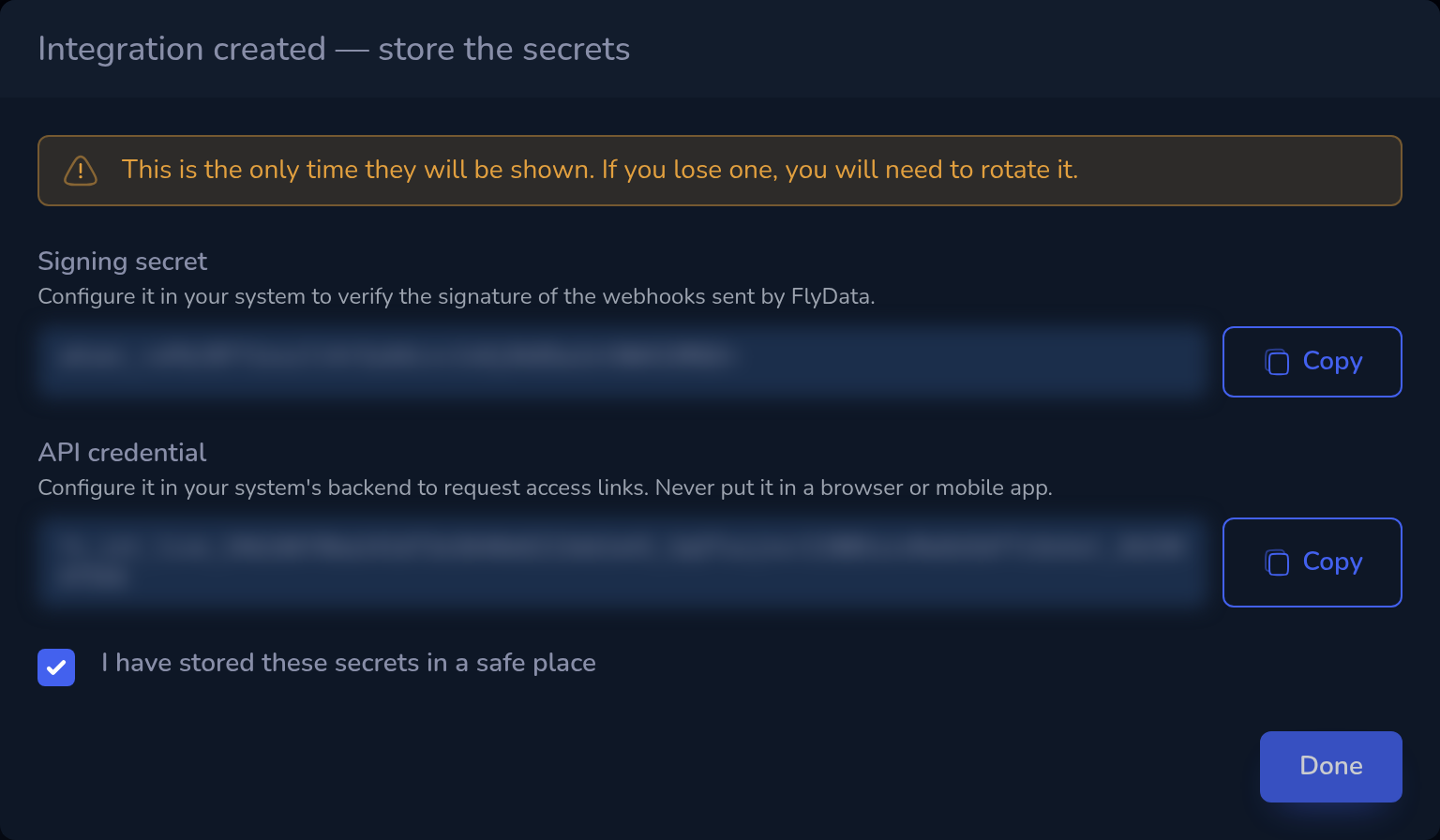
Important: this is the only time the secrets are shown. Store them in a safe place before closing the dialog. If you lose one, you will need to rotate it.
- Configure the signing secret in the system that receives the webhooks.
- Configure the API credential only in your system's backend. Never put it in a browser, a mobile app or any code that runs on the user's device.
The integration is created disabled: no flights are sent yet.
Step 2 — Test your endpoint
- In the integration panel, click Send webhook.test
- FlyData sends a
webhook.testevent to your endpoint, which must respond with a2xxstatus - The result appears in the panel and in the Deliveries list
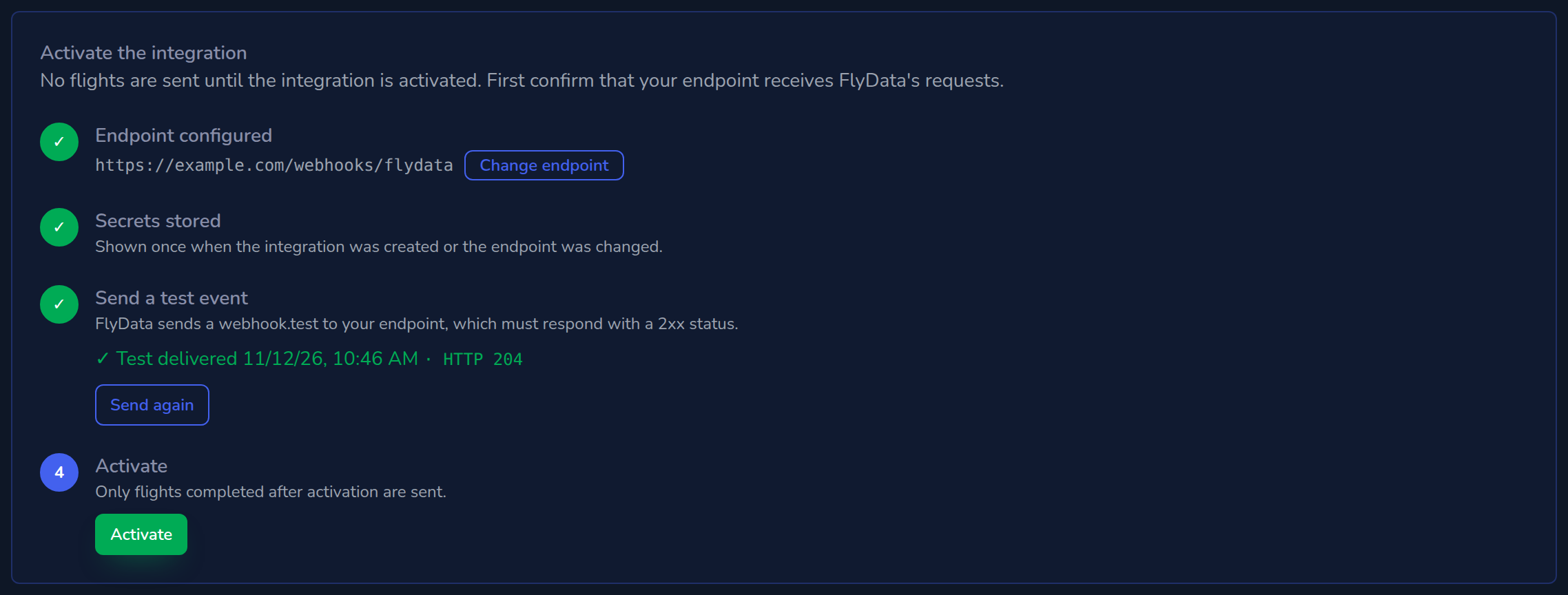
Use this test to confirm that your endpoint is reachable and that your signature verification works. Test events can be sent while the integration is disabled.
Step 3 — Activate
Once the test has been delivered successfully, click Activate.
Only flights completed after activation are sent. Earlier flights are not sent retroactively.
Receiving webhooks
The request
Each webhook is an HTTPS POST with Content-Type: application/json and these headers, following the Standard Webhooks specification:
| Header | Description |
|---|---|
webhook-id | Unique message ID. It stays the same on every retry of the same message. |
webhook-timestamp | Unix timestamp (seconds) of this attempt |
webhook-signature | v1,<base64 HMAC-SHA256> — may contain more than one signature, separated by a space |
Verifying the signature
Always verify the signature before trusting the request:
- Take the signing secret, remove the
whsec_prefix and Base64-decode the rest. The result is the HMAC key. - Build the signed content:
webhook-id+.+webhook-timestamp+.+ the exact raw request body. - Compute HMAC-SHA256 of that content with the key and Base64-encode it.
- Compare it, in constant time, with each
v1,<signature>entry inwebhook-signature. Accept the request if any of them matches. - Reject the request if
webhook-timestampis too far from your current time (5 minutes is a common tolerance).
Use the raw body bytes exactly as received. Parsing and re-serializing the JSON changes the bytes and the signature will not match.
When the signing secret is rotated, the header contains two signatures for a while (the new and the previous secret), which is why you should accept any valid one.
Standard Webhooks libraries exist for most languages and do all of this for you. A minimal example without libraries:
Node.js
import crypto from 'node:crypto';

function verifyFlyDataWebhook(secret, headers, rawBody) {
  const id = headers['webhook-id'];
  const timestamp = headers['webhook-timestamp'];
  const signatures = headers['webhook-signature'];

  const ageSeconds = Math.abs(Date.now() / 1000 - Number(timestamp));
  if (!id || !timestamp || !signatures || ageSeconds > 300) return false;

  const key = Buffer.from(secret.replace(/^whsec_/, ''), 'base64');
  const expected = crypto
    .createHmac('sha256', key)
    .update(`${id}.${timestamp}.`)
    .update(rawBody) // Buffer with the raw request body
    .digest();

  return signatures.split(' ').some((entry) => {
    const [version, value] = entry.split(',');
    if (version !== 'v1' || !value) return false;
    const received = Buffer.from(value, 'base64');
    return received.length === expected.length && crypto.timingSafeEqual(received, expected);
  });
}
Python
import base64, hashlib, hmac, time

def verify_flydata_webhook(secret: str, headers: dict, raw_body: bytes) -> bool:
    msg_id = headers.get("webhook-id")
    timestamp = headers.get("webhook-timestamp")
    signatures = headers.get("webhook-signature")
    if not (msg_id and timestamp and signatures) or abs(time.time() - int(timestamp)) > 300:
        return False

    key = base64.b64decode(secret.removeprefix("whsec_"))
    signed = f"{msg_id}.{timestamp}.".encode() + raw_body
    expected = base64.b64encode(hmac.new(key, signed, hashlib.sha256).digest()).decode()

    return any(
        version == "v1" and hmac.compare_digest(value, expected)
        for version, _, value in (entry.partition(",") for entry in signatures.split(" "))
    )
Responding
- Respond with any
2xxstatus as soon as you have safely stored the message. FlyData only looks at the status code and ignores the response body. - Respond within 15 seconds. Slower responses are treated as failures and retried. If processing takes longer, store the message and process it in the background.
- Delivery is at least once: the same message may arrive more than once. Store
webhook-idand, if you receive an ID you have already processed, respond2xxwithout processing it again.
Retries
| Response | What FlyData does |
|---|---|
2xx | Delivered |
Network error, timeout, 408, 425, 429, 5xx | Retries after about 1 min, 5 min, 30 min, 2 h, 6 h, 24 h and 72 h |
410 Gone | Stops and disables the integration |
Any other 3xx or 4xx | Stops; the message is not retried |
Retries always send exactly the same body. Redirects are not followed.
If a message stops being retried, a Company Admin can resend it from the Deliveries list after fixing the problem.
Events
Every event has the same envelope:
| Field | Description |
|---|---|
event_id | Event identifier (evt_...) |
event_type | flight.processed or webhook.test |
schema_version | Currently 1.0 |
occurred_at | When the event was created |
data | Event-specific content |
Ignore event types you do not recognize, and ignore unknown fields: new optional fields may be added without changing schema_version.
webhook.test
Sent when you click Send webhook.test. Respond 2xx; it does not represent a flight.
{
  "event_id": "evt_7d0c6a3e-1f0b-4a51-9d61-1b0f6f7a9e21",
  "event_type": "webhook.test",
  "schema_version": "1.0",
  "occurred_at": "2026-11-03T12:00:00Z",
  "data": { "message": "FlyData webhook test" }
}
flight.processed
Sent once per flight, after a complete flight has finished processing.
{
  "event_id": "evt_3ebfad3b-ea8c-438f-8b17-a707e8de34cf",
  "event_type": "flight.processed",
  "schema_version": "1.0",
  "occurred_at": "2026-11-03T12:01:00Z",
  "data": {
    "flight_id": "flt_cda70b74-54db-4bef-a008-034b4e6cce16",
    "aircraft": { "registration": "EC-ABC" },
    "times": {
      "engine_on": "2026-11-03T10:00:00Z",
      "off_block": "2026-11-03T10:05:00Z",
      "takeoff": "2026-11-03T10:10:00Z",
      "landing": "2026-11-03T11:50:00Z",
      "on_block": "2026-11-03T11:55:00Z",
      "engine_off": "2026-11-03T12:00:00Z"
    },
    "route": { "departure_icao": "LEBB", "arrival_icao": "LEBB" },
    "landing_count": 2,
    "alarms_count": 1,
    "metrics": {
      "flight_time_seconds": 6000,
      "block_time_seconds": 6600,
      "distance_nm": 120.5,
      "maximum_altitude_ft": 5000.0
    },
    "events": [
      {
        "type": "TAKEOFF",
        "timestamp": "2026-11-03T10:10:00Z",
        "latitude": 43.301,
        "longitude": -2.911,
        "icao": "LEBB"
      }
    ],
    "events_total": 1,
    "events_truncated": false,
    "links": {
      "authenticated_view_url": "https://dash.flydata.io/flights/flt_cda70b74-54db-4bef-a008-034b4e6cce16"
    }
  }
}
| Field | Description |
|---|---|
flight_id | Stable FlyData flight identifier (flt_...). Store it: you need it to open the flight later. It does not grant access by itself. |
aircraft.registration | Aircraft registration |
times.* | Engine on, off block, takeoff, landing, on block and engine off. Any of them can be null if not detected. |
route.departure_icao, route.arrival_icao | ICAO code of the departure and arrival aerodrome. ZZZZ means the location has no known ICAO code (e.g. a private field). null means it could not be determined. |
landing_count | Number of landings, including touch-and-go |
alarms_count | Number of active alarms during the flight |
metrics.flight_time_seconds | Takeoff to landing |
metrics.block_time_seconds | Off block to on block |
metrics.distance_nm | Distance flown, in nautical miles |
metrics.maximum_altitude_ft | Maximum altitude, in feet |
events | Up to 50 flight events, in chronological order |
events_total | Total number of events in the flight |
events_truncated | true when the flight has more than 50 events |
links.authenticated_view_url | Link for users with a FlyData account (see below) |
Each entry in events has type, timestamp, latitude, longitude and icao (all except type and timestamp may be null). Possible types are ENGINE_STARTED, TAKEOFF, TOUCH_AND_GO, LANDING, ENGINE_SHUTDOWN, POWER_REMOVED, POWER_RESTORED, MOVEMENT_STARTED, MOVEMENT_STOPPED, ALARM and UNKNOWN. ALARM events also have an alarm object with state and type. Treat unknown types as informational.
All timestamps are ISO-8601 in UTC.
Opening a flight in FlyData
There are two ways to open the flight from your system.
Users with a FlyData account
Use links.authenticated_view_url. The user logs into FlyData as usual and FlyData checks that they are allowed to see the flight. The link alone grants no access.
Users without a FlyData account
Your system decides who may see the flight, then asks FlyData for a temporary access link:
- The user, already logged into your system, asks to see a flight.
- Your backend checks that this user may see it.
- Your backend requests an access link with the API credential.
- Your system redirects the user's browser to the returned
url.
FlyData does not know your users: authorizing them is your system's responsibility. The API credential can create a link for any flight of your company, so before requesting one your backend must confirm that the logged-in user is allowed to see that specific flight — for example, that a student only opens flights from their own lessons. Never build the request from a flight_id supplied by the browser without that check.
Request
POST https://dash.flydata.io/api/integrations/v1/flights/{flight_id}/access-links
Authorization: Bearer fv_int_live_...
curl -X POST \
  -H "Authorization: Bearer $FLYDATA_API_CREDENTIAL" \
  https://dash.flydata.io/api/integrations/v1/flights/flt_cda70b74-54db-4bef-a008-034b4e6cce16/access-links
Response
{
  "url": "https://dash.flydata.io/external/access/fvl_...",
  "expires_at": "2026-11-03T12:31:30Z"
}
- The link is valid for 90 seconds and can be used once. Request it immediately before redirecting the user; do not store it or send it by email.
- After opening it, the user can view that single flight for 30 minutes. They cannot see other flights, export data or change anything.
- Open the link in a browser tab or window. Embedding FlyData in an iframe is not supported.
Errors
| Status | Meaning |
|---|---|
401 | Missing, invalid or revoked API credential |
403 | The credential is not allowed to create access links |
404 | The flight does not exist or does not belong to your company |
429 | Too many requests: up to 60 access links per minute per credential |
Managing the integration
All of this is done by a Company Admin in Settings → Integrations.
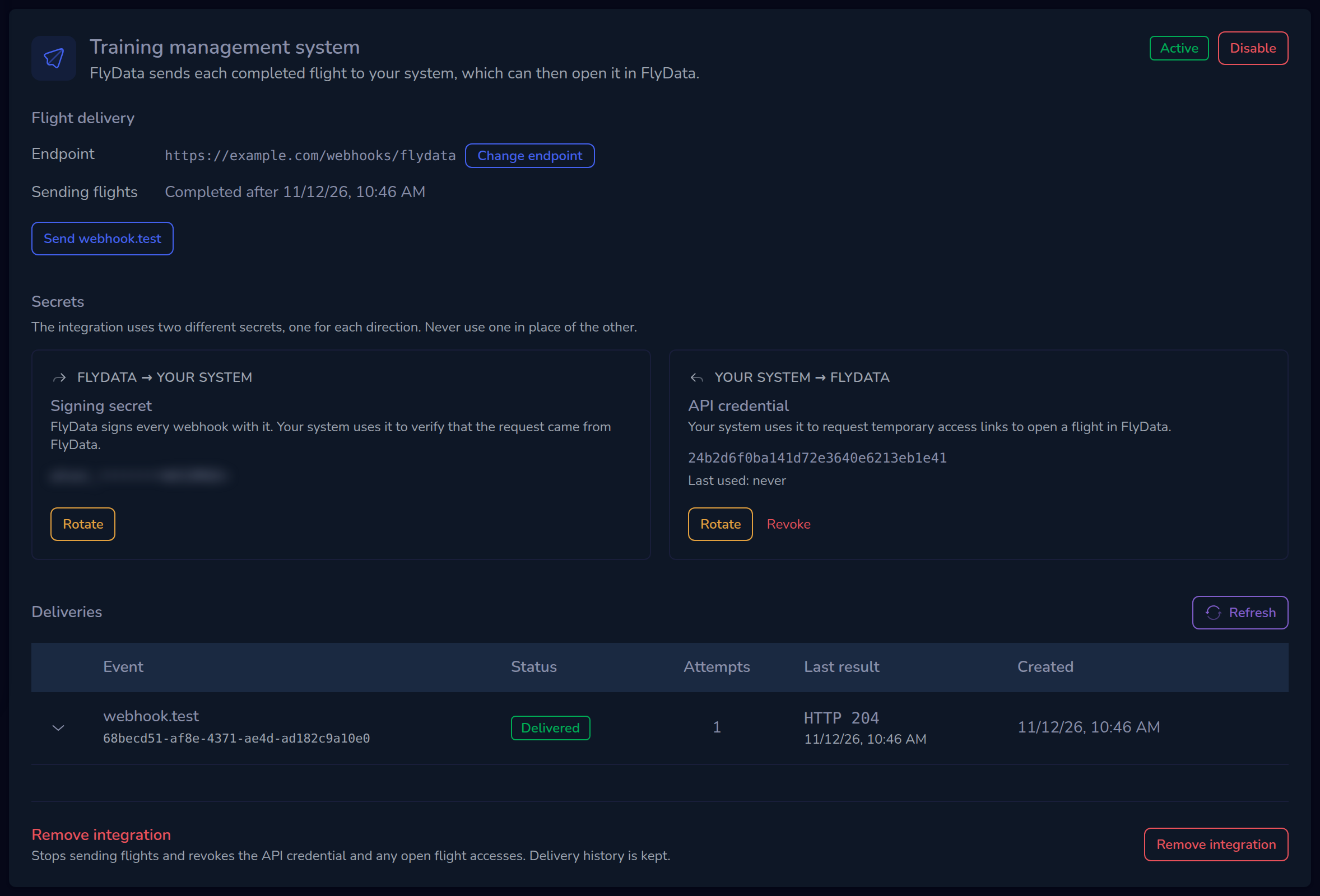
| Action | Effect |
|---|---|
| Disable | Stops sending flights and cancels pending deliveries. |
| Activate | Resumes sending. Only flights completed after activation are sent; the period during which it was disabled is not sent later. |
| Change endpoint | Only while disabled. Generates a new signing secret; the previous one stops working immediately. Test the new endpoint and activate again. |
| Rotate signing secret | Only while active. For 24 hours, requests are signed with both the new and the previous secret, so you can update your system without losing messages. |
| Rotate API credential | Generates a new credential. Update your backend right away. |
| Revoke API credential | Your system can no longer open flights, and open flight accesses are revoked. Webhooks continue to be sent. |
| Remove integration | Stops sending flights and revokes the API credential and all open flight accesses. Delivery history is kept. This cannot be undone; to reconnect, set up the integration again. |
The Deliveries list shows each message, its status, every attempt and its result, and lets you resend a message.

Before you go live
Use this list to confirm your system is ready before you click Activate.
Receiving flights
- Your endpoint is a public HTTPS address (port 443) and answers with a
2xxstatus in less than 15 seconds. → Responding - Your system checks the signature of every request, using the raw request body, and rejects requests with an old timestamp. → Verifying the signature
- Your system ignores a message it has already received with the same
webhook-id, so a repeated delivery does not create a duplicate flight. → Responding - Your system saves the
flight_idof each flight: you need it later to open the flight. →flight.processed - Your system handles airports without an ICAO code (
ZZZZ) and values that could not be determined (null). →flight.processed
Opening flights
- The API credential is stored only in your backend, never in a browser or mobile app.
- Before requesting an access link, your backend confirms that the logged-in user is allowed to see that flight. → Users without a FlyData account
- Your system requests the access link only when the user clicks to open the flight, and redirects them straight away (the link expires after 90 seconds).
In FlyData
- Both secrets are stored in a safe place.
- The
webhook.testevent was delivered successfully. → Step 2
If a secret is leaked: rotate it immediately in Settings → Integrations. For the API credential you can also revoke it, which immediately closes any open flight accesses.